
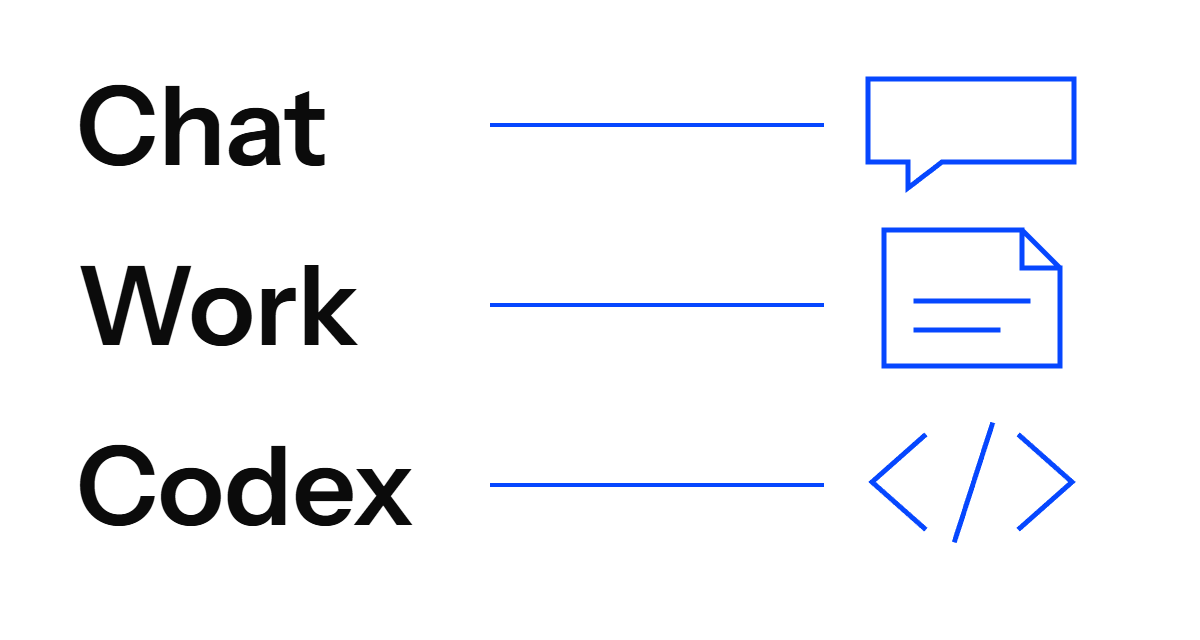
Regular ChatGPT chat is useful for questions and discussing ideas. ChatGPT Work suits longer tasks where you want a finished spreadsheet, document or presentation. Codex is particularly well suited to websites, apps and code, but can handle other computer-based work too. Their capabilities overlap. Your choice depends on the task and how much of the technical process you want to see. OpenAI’s current user guide makes a similar distinction.
There are plenty of names: ChatGPT, Work, Codex, plus model names and subscription plans. It is understandable if, at some point, you wonder which one you should actually use.
For me, the choice starts with a simple question: what needs to exist when the work is finished? Do I want to understand something, write a customer email, assemble a report from several files or fix a website?
This article is for business owners, marketers, online shop operators and anyone with too much computer-based work.
Capabilities and sources checked on 13 October 2026. Tool availability depends on your plan, platform, region and workspace settings.
What is the difference between ChatGPT, ChatGPT Work and Codex?
ChatGPT is OpenAI’s AI application, which you interact with in ordinary language. In this comparison, I use Chat to mean a regular conversation. Work is a mode for longer tasks. Codex provides a more technical environment where you can, among other things, edit code, run commands and review changes.
These names do not mean three increasingly powerful models. Model selection is a separate matter. Nor is Work another name for ChatGPT Business: one describes a way of working, the other a subscription plan.
| If your goal is… | I would start here | What could you ask? |
|---|---|---|
| Get an explanation or clarify an idea | Chat | “Explain why the wording of my proposal is confusing.” |
| Write or improve a short text | Chat | “Turn this into a clear, friendly customer reply.” |
| Create a report from several files | Work | “Compare these proposals and prepare a decision table.” |
| Prepare a presentation | Work | “Create an eight-slide presentation from these materials.” |
| Fix a website or build an app | Codex | “Find the form error, fix it and check the result.” |
| Process a folder of files using a recurring rule | Work or Codex | “Organise these files and give me a list of the changes.” |
This is a practical starting point for choosing your first task.
When is a regular ChatGPT conversation enough?
If I need to discuss an idea, improve some wording or understand something, there is no reason to complicate the starting point. I open ChatGPT and describe my question.
Examples include an online shop’s product description, the tone of a customer email, the structure of a post or an explanation of a complex document. Back-and-forth conversation is useful here: I get an initial version, then explain what works and what does not.
ChatGPT can also offer web search, file and image handling, and other tools when available in your environment. A regular conversation is therefore more than an empty text box. OpenAI’s feature overview explains the additional options.
One example from my own experience is recovering my Facebook account. ChatGPT and Gemini helped me formulate correspondence, work out the next steps and resolve the situation. For this kind of task, conversation itself provides a great deal of value.
What is ChatGPT Work, and when should you use it?
In ChatGPT Work, you give AI a task with a clear outcome. For example: “Compare these three quotes, list missing information separately and create a file I can use to make a decision.”
This already involves several steps. The materials must be read, data put into a consistent format, differences identified and the result made usable. Work is designed to handle that whole process. You can answer questions and change direction along the way. The getting started guide for Work describes this approach.
For example, you could give Work these tasks:
- As a business owner: compare received proposals and identify what each price excludes.
- As a marketer: consolidate a campaign brief and turn it into a presentation with a content plan.
- As an online shop operator: check a product export, find products with missing descriptions and prepare a corrections table.
- As a team leader: turn meeting notes into an action plan, taking owners and deadlines from the source material. Flag missing information as questions.
These are example tasks. A good result also requires suitable materials and tools.
Work can create and update documents, spreadsheets, presentations and PDFs. You can review a finished file and request changes. In the desktop app, supported files can be opened alongside the conversation. The guide to working with files explains these capabilities.
For me, the important point is having something usable at the end. If I ask for a spreadsheet, I want a spreadsheet I can open and calculations I can understand.
Which tools extend what Work can do?
Work becomes useful when the task, source information and tools are brought together. A few concepts are worth understanding.
Projects keep conversations, files and instructions for one topic together. For example, you do not need to start from scratch with the same company’s copy and brand voice every time. Files added to a cloud project are different from a local project connected to a folder on your computer. The projects guide explains what information AI can use.
Plugins can connect email, Drive and other tools in supported environments. Chat and Codex can use plugins too. Whether AI can only read data or also change it depends on the plugin, the connected account’s permissions and the workspace settings. Some plugins only work in the desktop app. Plugin guide
The browser tool helps open websites, navigate them and carry out actions. The desktop app’s built-in browser and an extension connecting to your usual browser are different options. Browser guide
Computer Use can operate application windows with a suitable plugin and permissions. On Windows, this may involve using the active desktop, mouse and keyboard, which you need to account for in your workflow. Computer Use guide
Skills preserve recurring instructions, such as how a report should be structured or how file organisation should be checked. This lets you reuse the preferred way of working. Skills and plugins explained
Scheduled tasks suit recurring work, such as a weekly review of specific sources. The schedule must actually be saved, and you should check where it runs and which sources it needs. For local scheduled tasks, the computer must be switched on and the ChatGPT desktop app running. Scheduled tasks guide
If you encounter ChatGPT Space, it is a place to keep and collaboratively edit pages, files and other work content. A Page is an editable page in that environment. Space is for content and collaboration; it is not a new name for Work. ChatGPT Space overview
You do not need to set all of this up on day one. Begin with one task and add the tools it needs.
Do you need to install an app to use ChatGPT Work?
No. ChatGPT Work can also be used on the web if it is available on your account. Open ChatGPT, select Work and add the task materials. The web guide describes creating analyses, documents, spreadsheets and presentations there. ChatGPT on the web
The desktop app becomes useful when the work involves folders, local files or tools on your computer. For example, you may have a folder of images that need to be renamed, converted and saved to a separate output folder using a particular rule.
The ChatGPT desktop app is available for macOS, Windows and Linux. In the app, you can choose ChatGPT and then Chat or Work; Codex is a separate option for more technical work. Download instructions are on the official app page.
Browser or desktop app? Choose according to where the necessary files and tools are. A browser can work with web sources and uploaded files. The desktop app is useful for local files and computer tools. Using a connected computer from the cloud requires separate setup.
Another practical distinction: closing the app and stopping the work are not always the same thing. A task running in the cloud may continue after the app is closed. If a step needs your computer, that computer must remain connected and available.
With supported synchronisation, you can return to work from another device and use authorised local resources through a connected computer. This cannot be assumed for every account. Using Work across devices
What is Codex, and can you use it without programming skills?
Codex is an OpenAI tool that lets AI carry out technical work while you follow the process and review changes. You can describe the desired result in ordinary language. You do not need to write code yourself to get started.
For websites and apps, Codex’s advantage is that it can work with project files, make changes and run checks. Its interface also exposes more development detail, such as which files changed and which checks were run. Official comparison of Codex and Work
And yes, Codex can do more than coding. OpenAI also mentions research, documents and presentations. You do not necessarily have to switch to Work for those tasks.
One example from my own work is migrating eight websites to another hosting provider. I gave Codex the task, watched it begin in the evening and went to bed. By morning, the sites had been moved; an email issue on one site still needed fixing. The work included checks and corrections.
I have also written about going from one image to a working 3D shower-room scene. Examples like these show me most clearly how AI can be used in everyday work.
Does Codex always need to be installed?
There are several ways to use Codex. The desktop app is suited to local projects and files. Codex Cloud lets you assign coding tasks to a cloud environment. It does not necessarily require a local app, but the relevant project needs to be connected to the cloud environment. Codex Cloud guide
Developers also have the CLI, for command-line use, and an IDE extension, which brings Codex into a code editor. Beginners have no reason to install all of them at once. These are different ways to use the tool, and their interfaces and capabilities are not identical. Codex CLI and editor extension
One project, three different tasks
Consider a company that needs to update its service proposal and website. I would divide the work like this.
I would ask Chat to clarify the idea:
Help me work out what information our service proposal needs. The customer is a small business. First ask what you need to know, then help me structure the proposal.
I would ask Work to prepare the finished materials:
Use these service descriptions and the price table. Prepare a proposal document for the customer and a separate spreadsheet showing the calculations. Use only the supplied prices. Flag anything missing or contradictory. Show me the finished files for review.
I would ask Codex to change the website:
Add the approved service description and price table to our website project. Preserve the existing design. Check desktop and mobile layouts and show me the changes. We will publish after review.
Each task has a clear endpoint: understanding in the first case, files in the second and a working change in the third.
Frequently asked questions
Is Work a separate paid ChatGPT plan?
Work is the mode described here. Its usage allowance, models and tools depend on your plan and current terms. Work and Codex share usage limits, so switching between them does not automatically give you a new, independent allowance. See OpenAI’s guide to plans and usage.
Can Work automatically see every file on my computer?
No. A file uploaded on the web, a connected service and a local project folder provide different kinds of access. The task needs the relevant sources and permissions. Installing the desktop app does not mean every file is available in every conversation.
Can I give ChatGPT and Codex instructions in Estonian?
Yes. Describe what you want, which materials should be used and how the result should be checked. English product names can be used within an Estonian sentence. What matters is a clear task.
Where should I start if I have not used either?
Choose one small work task. Discuss it in Chat, or give Work a couple of source files and ask for a finished result. Try Codex when the task concerns your website project or you want to see more of the technical implementation. Organising a copy of an existing file is a suitable first experiment.
Learn to use it in your own work
The most useful starting point is your own work: proposals, files, an online shop, copy or a recurring activity. That makes it clear which tool fits and what information to give AI.
If you are looking for ChatGPT training or want to learn how to use Work and Codex practically, explore team training. We break down the task, work through it together and check whether the result is usable.