
On a construction site, a lack of information is not always the biggest problem. Often the information is there, but finding it means opening several folders, reading through site diaries and working out which drawing revision is current. At the end of the day, there are still documents to fill in.
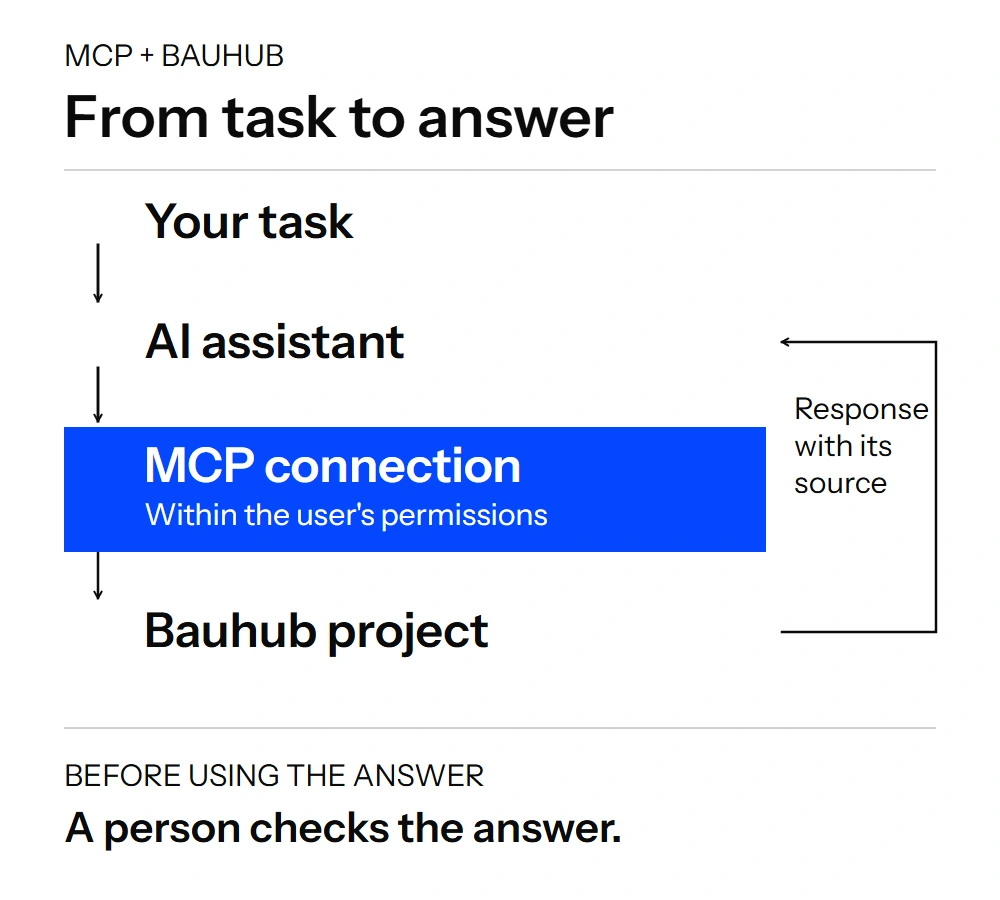
The Bauhub MCP connection lets an AI assistant search Bauhub within your access permissions and use supported operations to create or update documents and forms. This means you can also work with construction documents through a conversation: describe the task, provide the necessary context and check the result.
I have been testing and using this connection at Rand & Tuulberg for about a month. We have been waiting for this capability for a long time. For me, it is a particularly interesting example of AI becoming part of a construction company’s everyday work.
Availability as of 21 October 2026: Bauhub has not yet officially announced the MCP connection. We can already test and use it, but each company’s access, the suitability of its AI application and the supported operations need to be checked separately.
If you want to take your team in the same direction, I can help assess whether the connection is suitable, configure access that is already available and teach practical ways to use AI with Bauhub. Tell me what you need.
What is the Bauhub MCP connection?
Bauhub brings together a construction project’s files, drawings, documents and tasks. MCP, short for Model Context Protocol, is a way for an AI application to connect to another system’s data and tools. You can find a general explanation in my article on what an MCP connection is.
With Bauhub, this could mean asking AI to find a particular site diary, summarise it or help complete a project form. Instead of uploading every file to the conversation individually, the connection can work with the Bauhub content you have access to.
There is an important distinction here: a response in the conversation and a saved change in Bauhub are two different actions. The connection also includes operations for creating and updating forms. If you ask it to save a document in Bauhub and have the required permissions, the result may immediately become visible to other people on the project.
How can AI help subcontractors using Bauhub?
For a subcontractor, the value is often very practical: finding the information needed for the job and getting the documentation ready on time.
Uploading files and finding the right location
AI can help find the right project folder, prepare clear document names and upload files to Bauhub using the supported file operations. With a new drawing, it is important to distinguish between a new file and a new revision of an existing file so that the version history is preserved.
For example, you could ask: “These are this week’s installation documents. Before uploading them, show me which folder each file will go into and the name it will be saved under.”
This gives AI a clear task to work through. After saving, we check that the files have reached the agreed location. Uploading a file to a folder and adding it to a particular form’s attachment field may require different operations.
Answers from project documents
“Which document sets out the requirements for this stage of the work?” is a much better starting point than manually working through several folders. AI can search document names and, where available, their contents, then provide the source alongside its answer.
A useful answer identifies the project, file and revision the information comes from. If the relevant information was not found, that should also be clear. A “not found” result does not prove that a document is missing: the reason could be access permissions, the scope of the search or whether the file can be processed.
Completing a site diary
For a site diary, AI can help turn notes from the working day into suitable text and complete the supported fields. The project needs an appropriate form template, the necessary permissions and information about what happened on site.
Example request: “Draft today’s site diary from these notes. Separate the work carried out, the workers involved and the materials used. Ask about any missing information and show me the result before saving it in Bauhub.”
AI must not invent the weather, quantities of work or who was on site. That information comes from the person responsible for the work. Organising and formatting it is where AI can help.
Preparing concealed works records
For concealed works records, the connection can create a form from a suitable template and complete its fields. AI needs a description of the work, its location, the relevant dates and references to drawings and other supporting documents.
Reviewing an existing record is another useful task: “Show me which fields are incomplete, which references need checking and whether the description matches the notes I provided.”
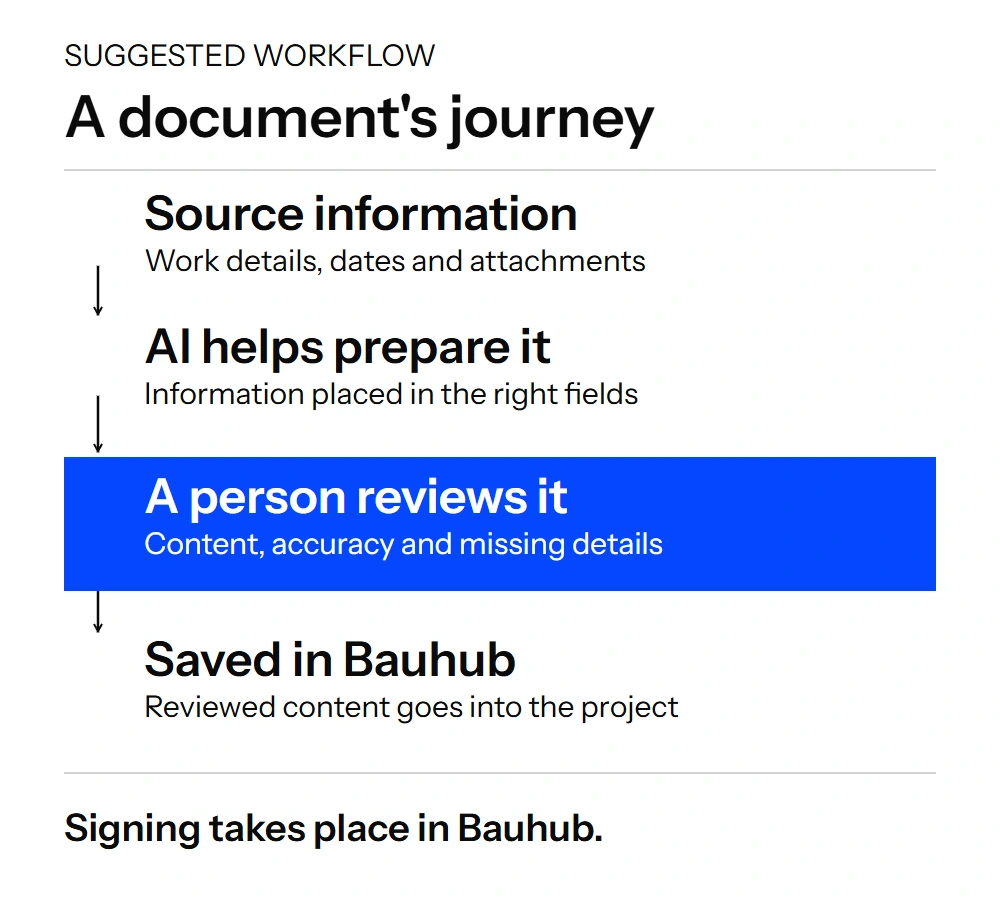
The responsible person confirms the content of the document and the work carried out. Signing takes place in Bauhub itself. Editing the form later does not update the content of a document that has already been signed.
How can the Bauhub MCP connection help main contractors?
A main contractor needs to review documentation from several parties at once. AI can help create an overview that can be checked: what has been submitted, what needs to be completed and which questions need further attention.
Reviewing site diaries and records
You can give AI an agreed period, a set of folders and document types, then ask it to create a table from the documents it finds. For example, the columns could include the date, subcontractor, document name, incomplete fields and a link to the original source.
If we want to know whether all the required records are present, we also need a list of the work and documents we expected. Looking only at the files already in a folder does not tell us which records should also have been created.
Example request: “Compare this week’s list of expected documents with the documents in the selected folder. Separate the documents found, possible gaps and anything that cannot be checked from the available information.”
New drawing revisions
The connection can help review a file’s revision history and compare pages from different PDF revisions. This makes it easier to find and discuss changes.
It is important to specify which versions and pages are being compared. A comparison of one page cannot support a conclusion about an entire drawing set. If a change affects how the work is carried out, someone with the relevant technical expertise needs to assess its implications.
Health and safety documents and signing status
AI can help find health and safety documents, review the information they contain and prepare an overview of points that need checking. Whether a particular inspection form can be created or updated depends on the templates and operations supported by the connection.
The existence of a document does not confirm that everything on site is safe. That assessment remains with the people who understand the working conditions and are responsible for them.
Signing progress can also be tracked. The connection includes operations for checking signature status and sending signing invitations and reminders to existing Bauhub users. An invitation notifies another person, so the recipient and document need to be checked before sending. AI does not digitally sign on the user’s behalf.
Bauhub with ChatGPT or Claude: how do you get started?
If you are looking to connect Bauhub to ChatGPT or Claude, the first step is to check the specific setup you intend to use. Both platforms support MCP-based connections, but Bauhub access, account capabilities and organisational settings determine whether you can use the connection and which operations are available.
I recommend starting with one clearly defined task, such as reviewing the documents in a selected folder. Once that works and you know how to check the result, you can move on to completing forms and other operations that write changes.
- Choose a task. What do you want to make easier: searching, completing site diaries, reviewing records or comparing revisions?
- Check access. Has the Bauhub connection been enabled for your account, and which AI application and subscription are suitable?
- Define the project and permissions. Which information may the assistant read, and which documents may it change?
- Run a limited trial. Choose a familiar document, ask about it and compare the answer with the source. For a write operation, also check the result saved in Bauhub.
- Agree how the team will work. Who provides the source information, who reviews the result and who authorises saving the document or sending an invitation?
Some capabilities, including full-text document search and PDF revision comparison, depend on the project’s full-text search and PRO features. Check that the subscription supports the particular work you want to do.
MCP provides the connection. The AI service’s data-use terms and your company’s own rules determine which project information may be used through it. Setting up the connection therefore also involves deciding which documents and fields should be processed in the first place.
AI in construction starts with a well-defined task
“Check the whole construction project” is too broad a request. AI needs to know which period, part of the work and set of documents to examine, and what to compare the results against.
For example: “Review this project’s site diaries from last week. Summarise the work described, highlight missing dates and include a source link for each observation. Do not change any documents.”
This is also one of the most important parts of AI training. Setting up the connection provides access to tools. Good working practices help people use them effectively: the right context, a clear task, sources that can be checked and an understanding of what was actually saved.
For me, the Bauhub connection is a useful example of how to apply AI in construction. The team’s own documents and tasks give the learning an immediate, practical focus.
Bauhub AI training and help setting up the connection
If your company uses Bauhub and wants to take its use of AI further, I can help you get started and train your team.
- Assessing suitability. I work with you to review the tasks you want to tackle, the access already available and the operations supported.
- Setup assistance. If the connection has been enabled for your account, I help configure it and check that it works for the agreed task.
- AI training for construction companies. I guide your team through searching, reading documents, preparing forms and checking results, with exercises suited to your roles.
- A shared way of working. Together, we agree what employees can do independently and which changes need review by the responsible person.
I provide independent setup assistance and training based on my practical experience using the connection. The service provider determines Bauhub access and subscription terms. I can tailor the training for subcontractors, site managers or a main contractor’s team.
Explore AI team training or tell me which Bauhub-related task you want to make easier. Include your role, the AI tool you currently use and one specific task. That gives us a starting point.
Questions about using Bauhub with AI
Is the Bauhub MCP connection already available to everyone?
As of 21 October 2026, I am describing my own experience of testing and using it at Rand & Tuulberg for about a month. The connection has not yet been officially announced. Your company’s access needs to be checked with Bauhub; I can help you clarify your requirements and choose a suitable task.
Can AI complete site diaries and concealed works records in Bauhub?
Yes, the connection includes operations for creating forms and updating their fields. Using them requires a suitable form template in the project, the necessary permissions and source information provided by a person. AI can help prepare the document, but the responsible person confirms the work carried out and the document’s content.
Does the connection give AI access to the company’s entire Bauhub environment?
The connection’s operations are governed by user, project and folder permissions. Access to every project or document should not be assumed. During a trial, check which information the answer was based on.
Is Bauhub AI training suitable for subcontractors too?
Yes. Training can focus on a subcontractor’s tasks, such as finding project information, uploading documents and preparing site diaries or records. For a main contractor, there is more emphasis on overviews, documentation checks and the team’s working practices.
Can we use ChatGPT or Claude during the training?
I select the tool with you based on your account, your company’s requirements and the capabilities supported by the Bauhub connection. Having ChatGPT or Claude alone does not guarantee Bauhub access. We check the suitable setup before agreeing the training content and configuration.
How does your assistance differ from standard Bauhub training?
You can find guidance on everyday use in the Bauhub support centre. My focus is using AI with Bauhub: defining tasks, assessing the connection’s suitability, working with construction documents and checking the result. The aim is for your team to be able to apply these methods in its own work.
What is this article based on?
My personal experience comes from testing and using the Bauhub MCP connection at Rand & Tuulberg. The tool descriptions for the beta connection in use have also been reviewed for the operations described here. The example requests are illustrative: they show how to define a task and check its result, and are not all presented as tests carried out at our company.
You can check Bauhub’s standard features, terms and support on the official Bauhub website. More detailed guidance on connections in AI applications is available in the OpenAI Help Centre and the Claude Help Centre.
The cover image is an AI-generated illustration. The diagrams explain how the connection works and a suggested workflow.